Expenses Report (cURL)
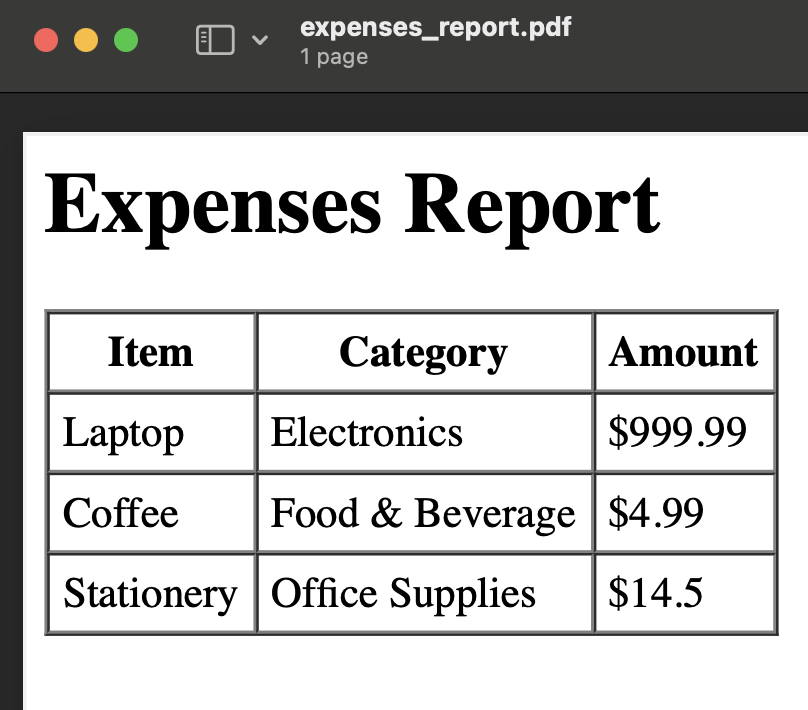
This example demonstrates how to generate an expenses report in PDF format using the GoTempl engine. The report will contain a simple table of expenses, including item names, categories, and amounts. This example uses the /generate-pdf-sync endpoint, which returns the PDF directly, and we will store the result as a file.
Step-by-Step Guide:
1. Prepare Your HTML Template
We’ll create a GoTempl-based HTML template to display the expenses in a table format. GoTempl syntax ({{.Field}}) will be used to insert dynamic data.
HTML Template (GoTempl):
<html>
  <head>
    <meta charset="UTF-8">
    <meta name="viewport" content="width=device-width, initial-scale=1.0">
    <title>Expenses Report</title>
  </head>
  <body>
    <h1>Expenses Report</h1>
    <table border="1" cellpadding="5" cellspacing="0">
      <thead>
        <tr>
          <th>Item</th>
          <th>Category</th>
          <th>Amount</th>
        </tr>
      </thead>
      <tbody>
        {{range .Expenses}}
        <tr>
          <td>{{.Item}}</td>
          <td>{{.Category}}</td>
          <td>${{.Amount}}</td>
        </tr>
        {{end}}
      </tbody>
    </table>
  </body>
</html>
2. Submit the Template and Data
You can submit the HTML template and expense data using the /generate-pdf-sync endpoint. Since the PDF will be returned directly as a binary file, we will store it as expenses_report.pdf locally.
Request Example:
curl -X POST "https://reportgen.io/api/v1/generate-pdf-sync" \
-H "X-API-Key: YOUR_ACCESS_KEY" \
-H "Content-Type: application/json" \
-d '{
  "html_template": "<html><head><meta charset=\"UTF-8\"><meta name=\"viewport\" content=\"width=device-width, initial-scale=1.0\"><title>Expenses Report</title></head><body><h1>Expenses Report</h1><table border=\"1\" cellpadding=\"5\" cellspacing=\"0\"><thead><tr><th>Item</th><th>Category</th><th>Amount</th></tr></thead><tbody>{{range .Expenses}}<tr><td>{{.Item}}</td><td>{{.Category}}</td><td>${{.Amount}}</td></tr>{{end}}</tbody></table></body></html>",
  "data": {
    "Expenses": [
      {"Item": "Laptop", "Category": "Electronics", "Amount": 999.99},
      {"Item": "Coffee", "Category": "Food & Beverage", "Amount": 4.99},
      {"Item": "Stationery", "Category": "Office Supplies", "Amount": 14.50}
    ]
  },
  "engine": "gotempl"
}' --output expenses_report.pdf
Explanation:
--output expenses_report.pdf: This tellscurlto store the binary PDF response in a file calledexpenses_report.pdf.
3. Retrieve and Store the PDF
Upon successful generation, the PDF file will be saved locally as expenses_report.pdf. You can open this file to view the generated expenses report.